For most nonprofits, the mission is rooted in inclusivity. You exist to serve, support, and uplift communities, ensuring that no one is left behind. But does your website reflect that same commitment?
Web accessibility is the practice of ensuring that people with disabilities can perceive, understand, navigate, and interact with the web. It is not just a technical checkbox or a legal safeguard; it is a digital extension of your organization’s values. If a visually impaired donor cannot read your impact report, or a volunteer with motor difficulties cannot fill out your sign-up form, you are unintentionally closing the door on them.
Accessibility sits at the intersection of inclusion, compliance, and usability. A website that works for people with disabilities works better for everyone. In this guide, we will walk you through how to audit your nonprofit’s website, identify barriers, and create a digital space that truly welcomes all.
What Website Accessibility Means for Nonprofits
When web developers talk about accessibility, they often refer to WCAG (Web Content Accessibility Guidelines). While the full documentation is dense, the core principles are simple. Your content must be:
- Perceivable: Users must be able to see or hear the content (e.g., text alternatives for images).
- Operable: Users must be able to use the interface (e.g., navigating without a mouse).
- Understandable: Information and operation cannot be confusing (e.g., clear error messages on forms).
- Robust: Content must work across different browsers and assistive technologies (like screen readers).
Who Does This Help?
It helps the blind user relying on a screen reader, the elderly donor with low vision needing high contrast, the viewer watching your video in a noisy room who needs captions, and the person with a temporary broken arm navigating via keyboard.
Why Nonprofits Are Especially Impacted
Nonprofits often serve vulnerable populations who are disproportionately likely to have disabilities. If your site is the gateway to critical services—like housing applications, food pantry locations, or legal aid—an inaccessible site isn’t just an inconvenience; it’s a barrier to aid.
Risks of an Inaccessible Website
Ignoring accessibility carries significant risks that go beyond simply “bad code.”
Legal Exposure
The number of lawsuits regarding digital accessibility under the Americans with Disabilities Act (ADA) has risen sharply in recent years. Nonprofits are not exempt. An inaccessible website can leave your organization vulnerable to legal action, which drains resources better spent on your mission.
Lost Donors and Volunteers
According to the CDC, up to 1 in 4 adults in the United States has some type of disability. If your donation page is impossible to navigate with a keyboard, or if your volunteer form isn’t labeled correctly for screen readers, you are effectively alienating 25% of your potential supporter base.
Poor UX for Everyone
Accessibility features often double as good User Experience (UX) features. High-color contrast makes text easier for everyone to read on a sunny day. clear headings make content scannable for busy professionals. When you fix accessibility, you usually fix usability for the general public, too.
SEO and Performance Impact
Google loves accessible websites. Many accessibility best practices—like using proper heading structures, adding alt text to images, and providing video transcripts—are also pillars of search engine optimization (SEO). An accessible site is easier for search engines to crawl and index, leading to better rankings.
Key Areas to Audit for Accessibility
You don’t need to be a developer to catch the most common errors. Here are the specific areas to review during your audit.
Color Contrast
Text must stand out against its background. If you have light gray text on a white background, or white text on a light orange button, it is likely unreadable for many users.
- What to check: Ensure a contrast ratio of at least 4.5:1 for normal text.
Keyboard Navigation
Many users with motor disabilities do not use a mouse. They navigate using the “Tab” key.
- What to check: Go to your homepage and put your mouse away. Can you Tab through every link and button in a logical order? Can you see which element is selected (the focus indicator)? Can you submit a form by hitting “Enter”?
Alt Text for Images
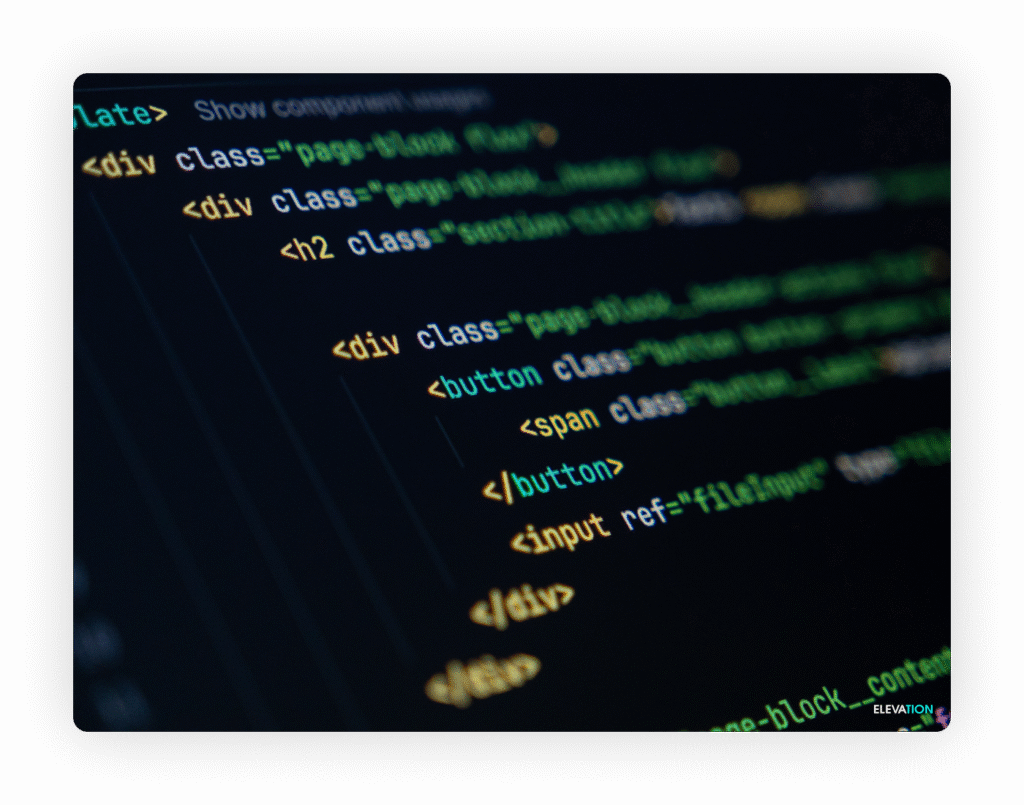
Screen readers cannot “see” images; they read the description provided in the code (Alt Text).
- What to check: Do your images have descriptions? Do they describe the function or content of the image (e.g., “Volunteer serving soup”) rather than just the file name (e.g., “IMG_504.jpg”)? Note: purely decorative images should have empty alt text so screen readers skip them.
Headings and Structure
Headings (H1, H2, H3) provide the skeleton of your page. Screen reader users often jump from heading to heading to skim content.
- What to check: Are you using headings in a logical order? You shouldn’t skip from an H2 to an H4 just because you like the font size.
Forms and Error Messages
Forms are critical for donations and newsletters, but they are often accessibility minefields.
- What to check: Does every form field have a clear label visible outside the box? If you make a mistake (like entering an invalid email), does the error message tell you exactly what went wrong and how to fix it?
Video Captions and Transcripts
Multimedia is great for storytelling, but it excludes the Deaf and hard-of-hearing community if not treated correctly.
- What to check: Do all your videos have accurate closed captions (not just auto-generated ones)? Do you provide a text transcript for audio-only content like podcasts?
Tools to Run an Accessibility Audit
While a full audit requires human expertise, several tools can help you get started.
Automated Tools
These are browser extensions or software that scan your code for violations.
- WAVE (Web Accessibility Evaluation Tool): A visual tool that highlights errors directly on your page.
- Google Lighthouse: Built into the Chrome browser, it gives you an accessibility score and a list of failed audits.
- Axe: A powerful developer tool for deeper testing.
The Limits of Automation
It is crucial to know that automated tools only catch about 30% of accessibility issues. They can tell you if an image is missing alt text, but they cannot tell you if the alt text accurately describes the image. They can check color codes, but they can’t tell you if the navigation order makes logical sense.
Manual Testing Basics
You must combine software with human testing. This includes the “keyboard test” mentioned above, zooming your browser to 200% to ensure text doesn’t overlap or disappear, and reviewing content for plain language.
Common Accessibility Issues on Nonprofit Sites
In our work with nonprofits, we see the same patterns emerge repeatedly. Watch out for these specific pitfalls:
- PDF-Heavy Content: Nonprofits love PDFs for annual reports and newsletters. Unfortunately, PDFs are notoriously difficult for mobile users and screen readers to access. Whenever possible, publish this content directly as a web page (HTML).
- Third-Party Donation Tools: You might have control over your WordPress site, but what about the donation platform you embed? If your third-party vendor isn’t accessible, your donation flow is broken.
- Old Templates or Themes: If your website hasn’t been updated in five years, your theme likely predates modern accessibility standards.
- Inconsistent Content Practices: Maybe your developer knows accessibility, but does the intern uploading blog posts? Missing alt text and improper headings often creep in during daily content updates.
Prioritizing Fixes (What to Do First)
An audit can return hundreds of errors, which feels overwhelming. The key is prioritization.
High-Risk Issues
Fix the “blockers” first. These are issues that completely prevent a user from completing a task.
- Example: If a keyboard user cannot reach the “Donate” button, or if a blind user gets trapped in a menu they can’t close, fix that immediately.
High-Impact Improvements
Next, tackle the sitewide changes that improve the experience on every page.
- Example: Adjusting your brand colors slightly to meet contrast standards or fixing the code for your main navigation menu.
Quick Wins vs. Long-Term Fixes
- Quick Win: Adding alt text to the images on your 10 most popular pages.
- Long-Term: Rebuilding your annual report template to be HTML-first instead of PDF.
Making Accessibility an Ongoing Practice
Accessibility is not a one-time project; it is a maintenance habit, just like security updates or SEO.
- Content Workflows: Update your style guide to require alt text for every new image and captions for every new video.
- Staff Training: Educate anyone who touches the website—marketing staff, volunteers, and content creators—on the basics of inclusive design.
- Regular Audits: Run an automated scan monthly and do a manual check of your key conversion paths (forms and donation pages) quarterly.
- Vendor Accountability: When buying new software or hiring a web agency, ask for their “VPAT” (Voluntary Product Accessibility Template) or accessibility statement. Make it a requirement in your contracts.
Creating an accessible website is a journey, but it is one of the most impactful ways to demonstrate your organization’s commitment to equity. By removing digital barriers, you open your mission to everyone.
Not sure where your nonprofit’s website stands with accessibility? Book a call with the Elevation team to learn how we can help your organization.